
Global
The Global tab of the Developer Studio Options contains three sub tabs
as shown below. After making changes to the options the Ok button will
save these changes.
Layout
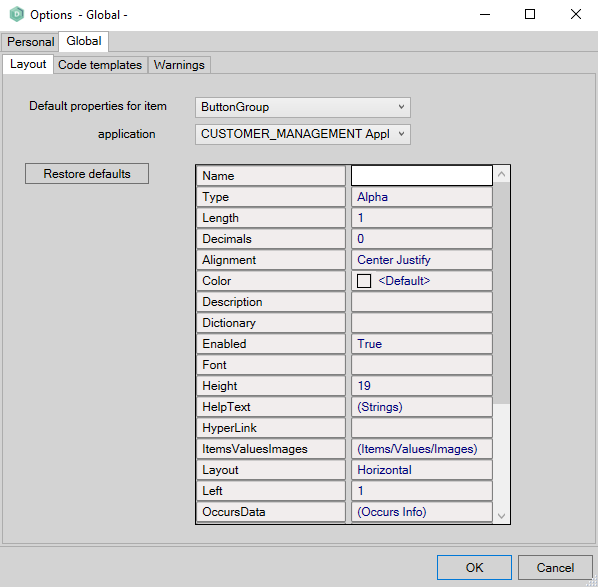
In this tab you can set the default properties for the available layout items. You can set different defaults for each application.
- Default properties for item: select a layout item from the dropdown list
- Application: select an application to from the dropdown list
- Restore defaults: by pressing this button you restore the AMT Developer Studio defaults for the selected item in the selected application
Once an application and layout item combination has been selected you can change the default properties in the listview.
The fonts to choose from are the available fonts of the client machine the AMT Developer Studio is running on. When a chosen font is not available on the client machine AMT Screens is running on (for Reports the server the batch controller is running on and for the webclient the client machine the webbrowser is running on) the Windows default font of that client/server will be used. If that replacement font is wider then your desired font, field sizes will be expanded to fit. To add fonts, right-click on the font file and select the 'Install for all users' option under 'Show more options'. This will ensure that all AMT components will have access to the font. |
Code templates
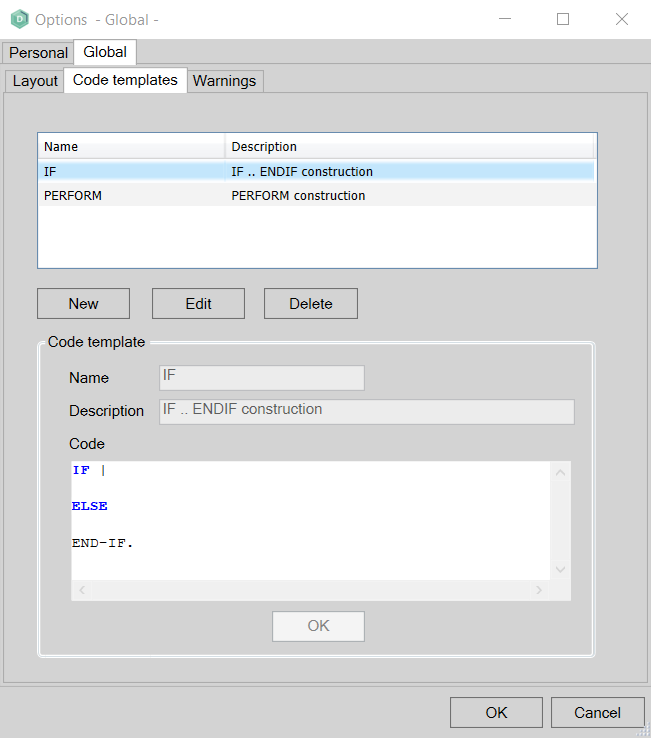
In this tab you can add, change and delete the Code templates that are available in the editor. To use a code template, type the name of that template (e.g. "rou" to add the complete routine skeleton) and press "CTRL+ENTER".
- New button: by pressing the New button you can create new code templates which you then can edit in the edit field. You can save the code template by clicking the OK button.
- Edit button: by selecting an existing code template in the list and then pressing the Edit button you can change existing code templates. You can save the changes by clicking the Ok button.
- Delete button: by selecting an existing code template in the list an the pressing the Delete button you can delete existing code templates. You will be prompted to confirm the deletion of the code template. You do not have to click the Ok button after deletion.
Warnings

In this tab you can set a single warning at this moment.
- Show update of tablequery without LOCKED command: when checked the syntax checker will generate a warning when an update of a tablequery is performed without the LOCKED option.