AMT Help Files

Object Inspector
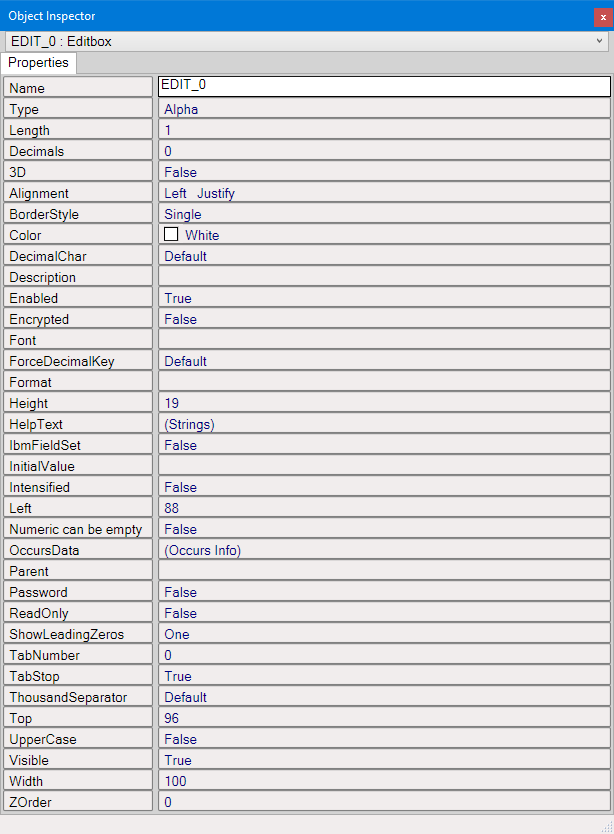
When a form's Screen Layout is opened, its layout and object properties can be viewed and configured through the Object Inspector.
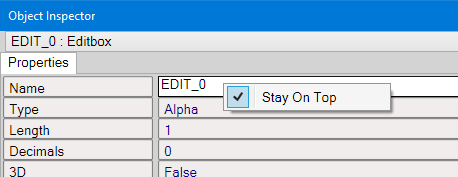
In the Object Inspector, the option Stay On Top can be enabled/disabled by pressing the Right Mouse button anywhere in the Object Inspector window. Enabling this option causes the Object Inspector to automatically reappear when an object is selected.
The Object Inspector can also
be opened manually by navigating in the menu bar to View → Object Inspector,
or by pressing the F11 key.
- If no object is selected, the Object Inspector will display the properties of the Layout Frame.
- If one object is selected, the Object Inspector will display the properties of the selected object. See the Screen Layout page for available objects.
- If multiple objects are selected, the Object Inspector will display only the shared properties and events
for these objects.
- A change made to one of the properties affects all selected objects.
- The displayed value is always the value of the first selected object. This means that if the value of other selected objects need to gain the same value of the first selected object, the value first needs to be changed to another value and then back to the original value for the Object Inspector to register the change for all selected objects.
- It is not possible to select objects that belong to a parent object (like a panel) together with objects that are not part of the same Panel.
The image below is an example that displays the properties for an Edit box in the Object Inspector.