
Reorganize Services
The Reorganize Services tab displays a list of reorganization services that are defined in the environment. A Reorganize Service is an optional service that performs database structure changes to the system and application databases. Use this service in environments that are not authorized to connect to a database, to instead run the reorganization of the database through a server.

Managing the Reorganize Service
If a Reorganize Service is selected from the list, the options to View, Edit, Copy, Remove, and (De)Install become available.
View
Views the settings for the selected Reorganize Service.
Remove
Removes the selected Reorganize Service from the environment.
Add, Edit, Copy
Add, edit, or copy a Reorganize Service, which opens the window as shown in the
image below. While adding a new Reorganize Service, the edit boxes start out empty.
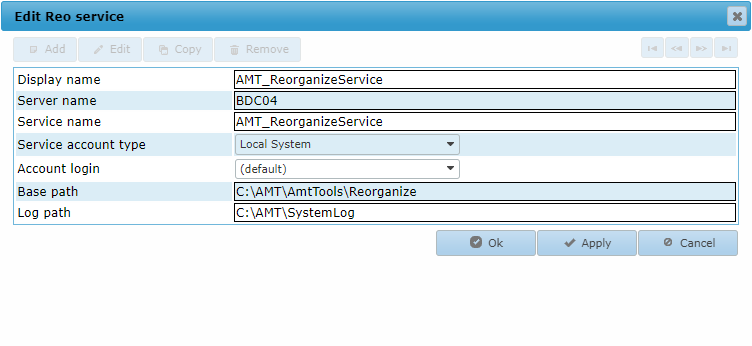
Display name
Sets the display name for the Reorganize Service in the AMT-COBOL environment.
Service account type
The type of Windows Service to use for this service. Possible values are:
- Local System
- Local Service
- Network Service
- User
If set to User the field Account login has to be set to a valid Login Account.
Account login
The Login Account to use if the Service account type
has been set to the value User. The list of accounts displayed are the login accounts added in
Security Configuration → Login Accounts. To be able to use
this Login account for starting and stopping this service, the underlying Windows User account needs to be granted
the right to control Windows Services (see Controlling Services
from a User Account).
Base path
The path to the ..\AmtTools\Reorganize directory in the main installation directory on the server.
Log path
The path to the directory where the Reorganize Service places its log files.
Installing the Reorganize Service as a Windows System Service
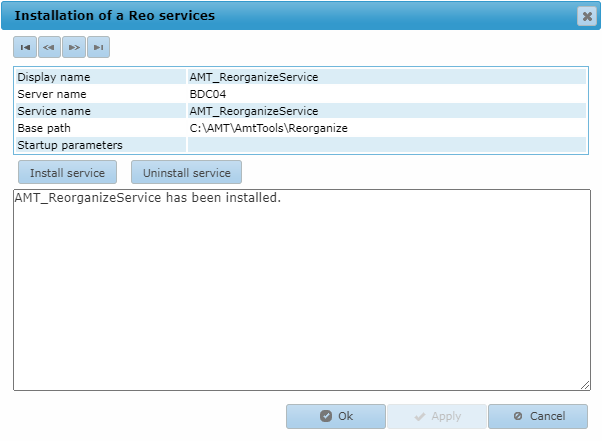
Clicking the (De)Install button opens the window shown in the image below. The Reorganize Service can be installed from this window as a Window System Service by clicking the Install service button. If the installation was successful, a message stating "service has been installed" appears in the message pane of the window. warning Installing a service only works if a default login account with correct security rights has been added to the Login Login accounts in the Control Center.
Configuring the Reorganize Service
|
After the Reorganize Service is installed, the server address and port number have to be set in the appsettings.json file in the ..\AmtTools\Reorganize directory of the AMT environment. A sample file named Sample_appsettings.json is located in the Reorganize folder, copy or rename this file to appsettings.json and open it in a text editor like Notepad. |
Reorganize Service Address
Change the ReoServiceAddress value with the correct server address and a free port number.
"ReoServiceAddress": "<Server>:<Port>",Example:
"ReoServiceAddress": "VM-AmtDevSrv:61002",Use File Controller
The UseFileController key can be set to True to use the File Controller to write the log files. When this option is used the File Controller must be both running and reachable from the Reorganize Service in order to start the Reorganize Service. The default value is False."UseFileController": TrueForce First User
The ForceFirstUser key can be added and set to True, this option ensures the Reorganization will start even when there are database connections already in use.This option should only be used with the utmost care. The default value is False.
"ForceFirstUser": FalseStarting and Stopping the Reorganize Service
The Reorganize Service can be started or stopped in the Server Control page of the Control Center.