Aligning Visual Objects
Open the Align tool by pressing F4 or navigating to View → Alignment. Use this tool to align objects in 10 different ways.
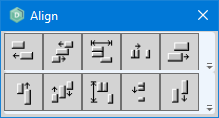
The available alignment options are:
- Top row options:
- Align left edges
- Align horizontal center
- Align horizontal in window
- Space equally, horizontally
- Align right edges
- Bottom row options:
- Align top edges
- Align vertical center
- Align vertical in window
- Space equally, vertically
- Align bottom edges
You must select multiple objects before you can align them.
To select multiple objects, hold down the CTRL key while selecting individual objects, or hold down the left mouse button and drag the cursor over multiple objects (you can also select all objects using CTRL + A). Once you select the objects to align, select one of the buttons to align them.
- The first object you select is used as the reference for aligning the other objects.
- If you select multiple objects by dragging the mouse cursor, the top-left object is used as the reference.
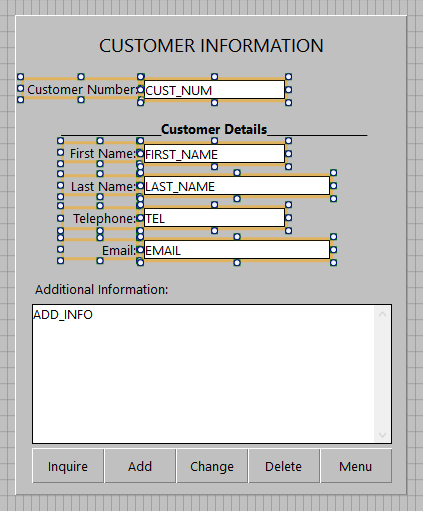
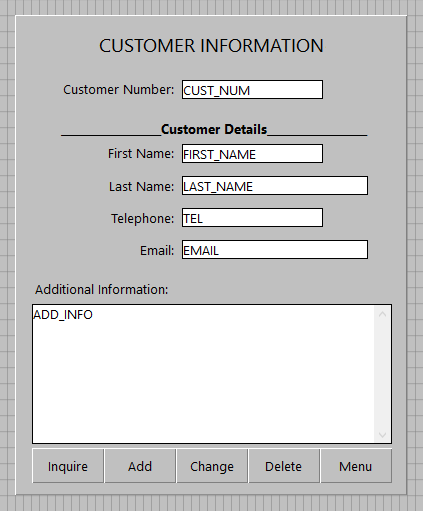
For example, pressing the Align left edges button aligns objects vertically, as shown in the images below.
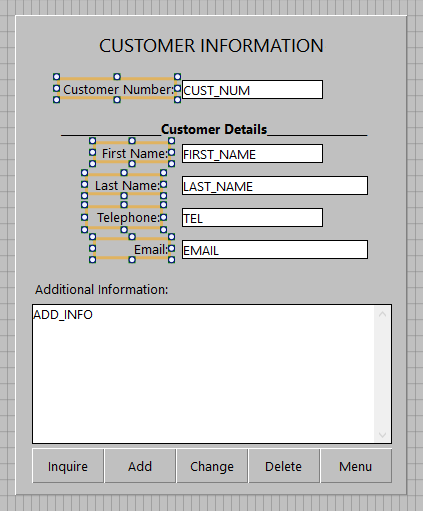
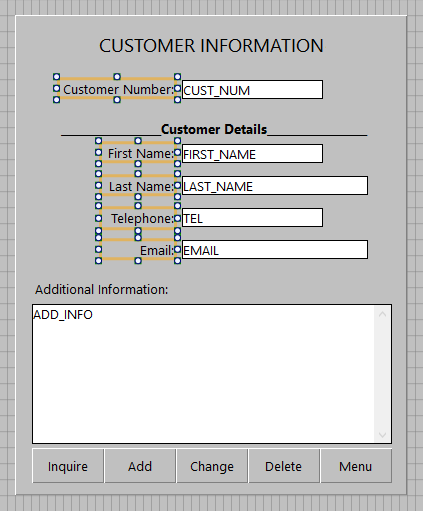
When you use the Align horizontal in window option, the selected objects are aligned to the center of the parent object. The images below demonstrate this by centering the selected objects horizontally within their parent Panel object.