
Adding Blazor Web Applications
Each Blazor web application requires an application pool in IIS Manager. To add a new application pool, right-click Application Pools in the pane on the right side, and select Add Application Pool....
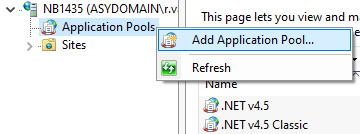
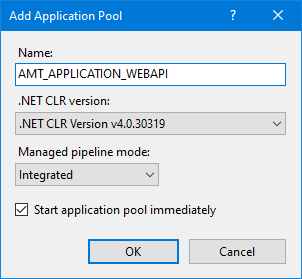
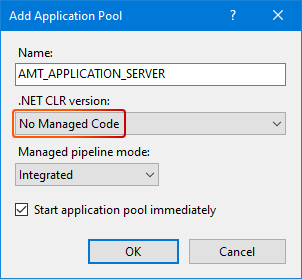
Add at least two application pools: one for the WebAPI and one for the client. Note that the Server application pool setting .NET CLR version must be set to No Managed Code.
|
|
Adding the WebAPI and Server application pools.
For more information about adding application pools, see this page.
Adding an application
In IIS Manager, you can add Blazor web applications to your environment. To do so, expand your main website (in this example, "Default AMT Web Site"), then right-click AMT and select Add application.
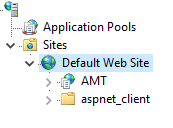
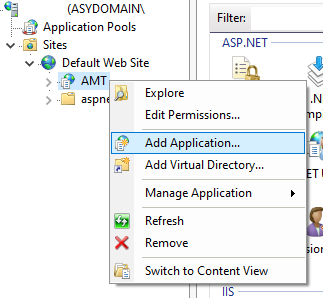
Set the alias name that identifies the application, and set the application pool to the corresponding AMT application pool. Do this for both the WebAPI and the client (Server). Then set the path to the corresponding directory. For example, a Blazor client of the Server type:
| Alias: | AMT_APPLICATION_CLIENT |
| Application pool: | AMT_ApplicationClient |
| Physical path: | ..\AMT\Apps\APPLICATION\Binaries\ClientBlazor\WebClient\Server |
The physical paths to each application are:
| WebAPI: | ..\AMT_Environment\Apps\APPLICATION\Binaries\ClientBlazor\WebApi |
| Server: | ..\AMT_Environment\Apps\APPLICATION\Binaries\ClientBlazor\WebClient\Server |
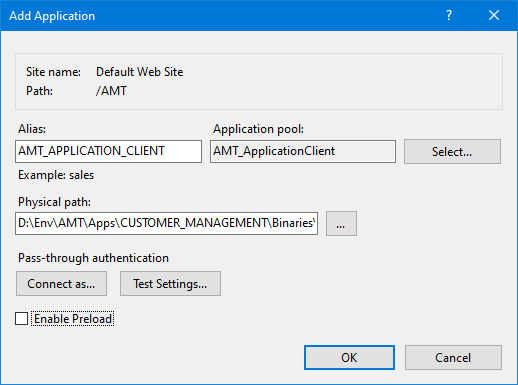 |
Adding an application in the IIS Manager. |
The next step is Configuring Blazor.