AMT Help Files

Adding the Necessary Websites to the IIS
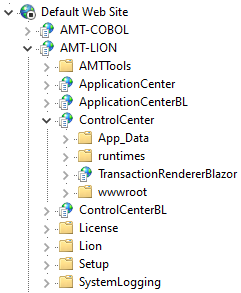
This page will guide you through adding the required web applications to the IIS Manager. The following applications need to be added:
- ControlCenter
- ControlCenterBL
- TransactionRendererBlazor
- ApplicationCenter
- ApplicationCenterBL
There are two ways to add these required web applications to IIS Manager.
- Automated (recommended) — using the Setup program explained on this page.
- Manually — adding the applications in IIS Manager (see Adding the Websites Manually).
Automatically Adding Web Applications
Follow these steps to automatically add the web applications to the IIS Manager:
- Navigate to the following directory: ..\<AMT_Environment>\Setup.
- Start Setup.exe.
Administrator Rights If using Windows 10 or newer, it is necessary to run Setup.exe with Administrator rights. - In the AMT Setup program, navigate to File → Settings. The following window appears:
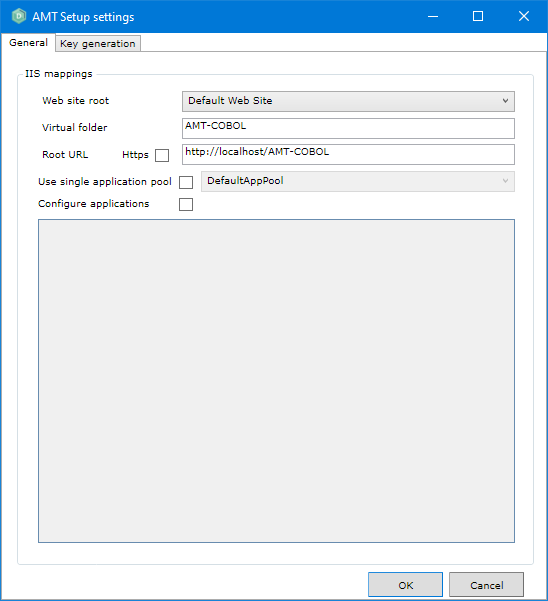
These settings are used for two tasks: 1. Add AMT web applications to IIS Manager. 2. Update the appsettings.json files for AMT web applications. - Configure the following settings:
- Web site root: The website in IIS to which the web applications will be added to. The drop-down menu displays all websites currently available.
- Virtual folder: Name the virtual folder that will be created under the website root. This virtual folder will contain the web applications.
- Root URL: The network address of the IIS server. Enter the complete address of the fully qualified domain name prefixed with "https" if using HTTPS. For example: https://amt.example.com or https://amtweb.contoso.local/.
- Https: If enabled, the appsettings.json files will be configured to use the HTTPS
protocol. This is recommended for production environments for security reasons.
Enabling HTTPS Enabling HTTPS, as well as setting the correct bindings and adding a valid certificate for the IIS website must be performed manually. Description of unused settings:
- Use single application pool: We strongly recommend using multiple separate application pools for each web application. This option should no longer be used.
- Configure applications: If enabled, the selected applications in the list below will be configured in the IIS Manager. This only works in development environments where prodinstall.exe is not used. This setting is not applicable at this point of the installation process.
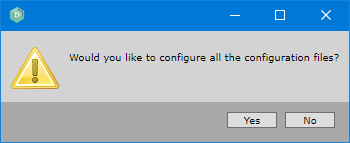
- Select Yes to continue. The following prompt appears, confirming if the configuration files
should be configured:
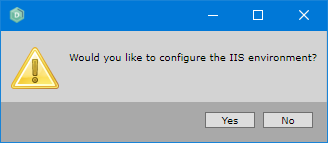
- Select Yes to continue. The following prompt appears, asking if the IIS environment should also
be configured:
- Select Yes to continue. IIS will be configured, and all application pools will be created
for the web applications.
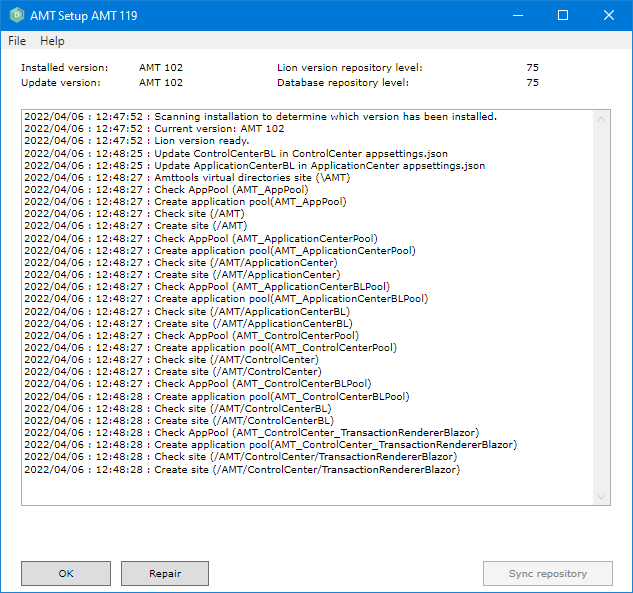
- The web applications have now been added to the IIS Manager. Select OK to close setup.
Configuring Authentication
The authentication method needs to be set for web applications after they are added to IIS Manager. Set up authentication for Control Center and Application Center by selecting the method below and following the instructions on that page.
There is only one possible method to access the Control Center and Application Center.
- OpenID Connect (OIDC) Authentication
When a user accesses the Control Center or Application Center, they will be presented with a sign-in screen from the identity provider configured in the appsettings files.