Messages
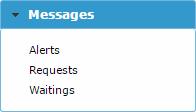
The Messages function gives access to messages generated by the application. There are three message types: Alerts, Requests, and Waitings. Alerts and waitings can only be viewed; requests can be answered.
Alerts
When you select Alerts, the user is presented with a list of alert messages, as shown below.
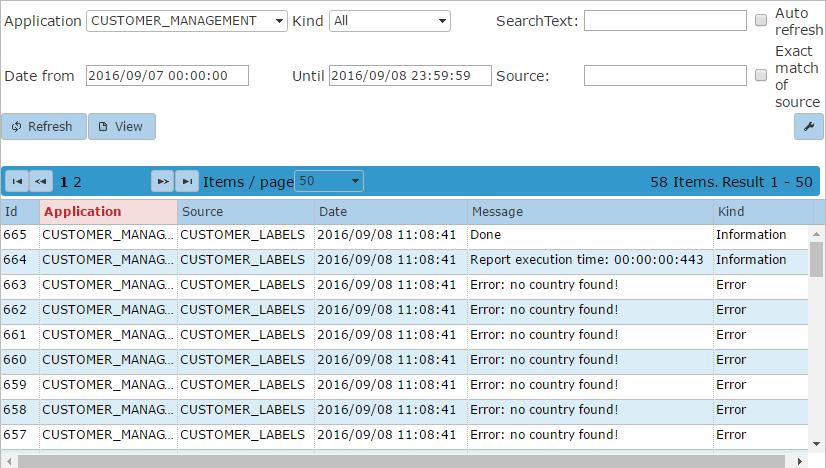
You can apply a filter for the application, a date/time window, the source of the message, and the alert message type (Kind).
There are three kinds:
- Information: General message
- Warning: Warning message
- Error: Error message
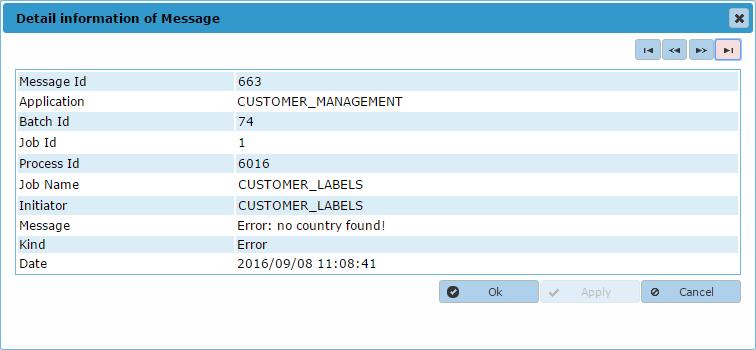
When you double-click an individual message, right-click it, or click View, a window with additional information appears, as shown below.
Requests
After selecting Requests, a list of request messages is displayed, as shown below.
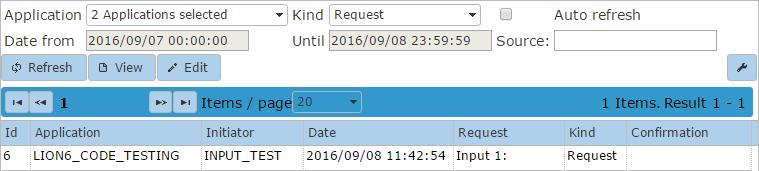
You can apply a filter for the application, a date/time window, the source of the message, and the request message type (Kind).
info Filtering by date/time is not available for request messages.
Possible kinds are:
- Request: Unanswered request messages.
- Confirmation: Answered request messages.
- Canceled: Canceled request messages.
When you right-click an individual message, you can choose to view the details of the request or confirm the request.
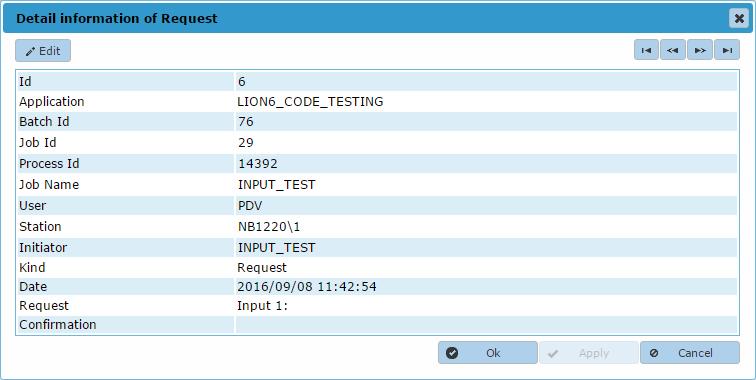
View Request
The details of the request are shown in the example below. No confirmation can be entered in this view.
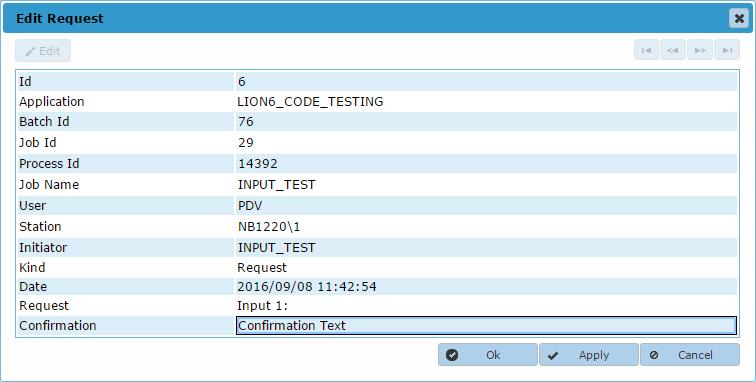
Confirm Request
You can confirm a request by clicking the Edit button. Then enter the confirmation text and send it to the application by clicking OK or Apply.
Waitings
After selecting Waitings, a list of all waiting messages is displayed, as shown below.
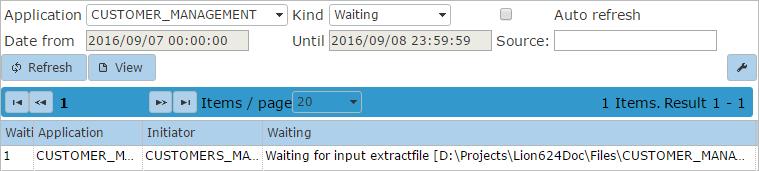
You can apply a filter for the application, a date/time window, the source of the waiting message, and the waiting message type (Kind).
Two kinds are possible:
- Waiting: A waiting message that is not yet resolved.
- Confirmed waiting: A waiting message that has been resolved.
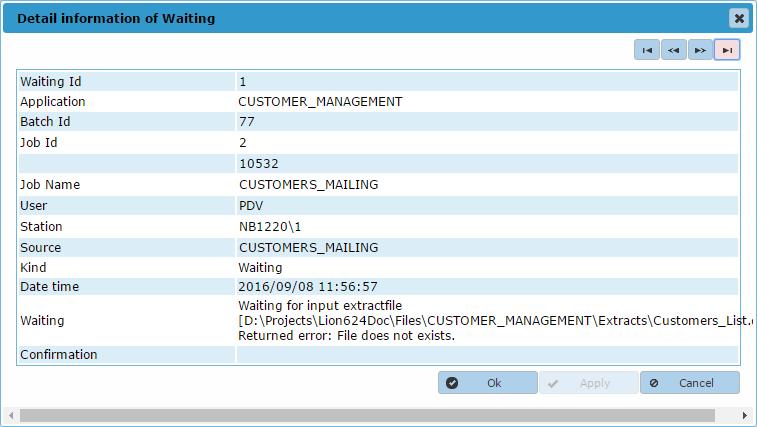
When you double-click an individual message, right-click it, or click View, the details of the message appear in a pop-up window, as shown below.