
Prints
The menu options enable users to control and view completed and queued prints in two corresponding tabs. Only prints for the current user are shown.
Completed Prints
The Completed Prints tab enables users to view the prints made by the application, view the output, and reprint the output if needed. When this function is selected, the following list is displayed.
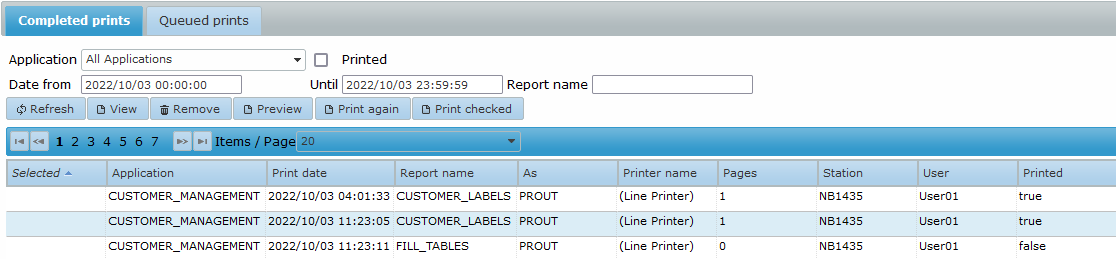
You can apply a filter for the application, printer name, date/time window, print status, and report name.
When you right-click a report in the list, you can choose to view the print output, print the output again, or view the print details.
Preview
After selecting Print preview, the user is presented with a preview of a PDF version of the print output in a separate browser window by using the Adobe Reader plug-in. This enables the user to view the print output, print it on a local printer, or save it to a local machine.
Again
After selecting Print again, the user is presented with the following pop-up window.

The user can choose the printer to send the print output to, select a page range, and specify the number of copies. The available printers are defined in the Control Center.
Checked
When you select the Print checked button, you can reprint multiple print jobs by selecting the Checked check box for each print job. A dialog is then shown so you can choose the printer.
Details
After selecting View, the user is presented with a pop-up window showing details about the print.
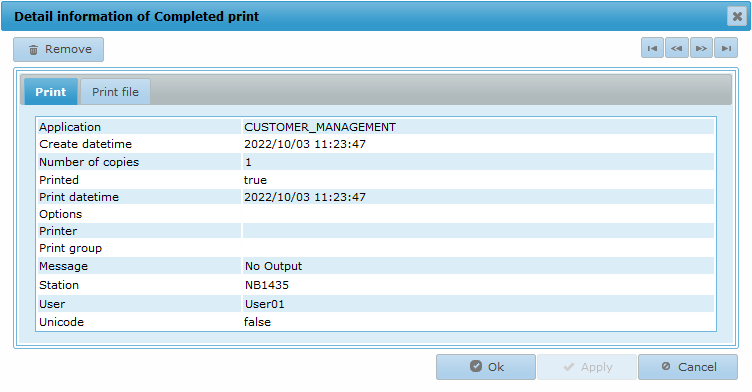
The information shown is self-explanatory and is not described further.
Remove
This removes the print from the environment.
Queued Prints
This tab enables users to view queued (not yet printed) print commands. A filter can be applied for the application, user, date/time window, and the report that originated the print command.
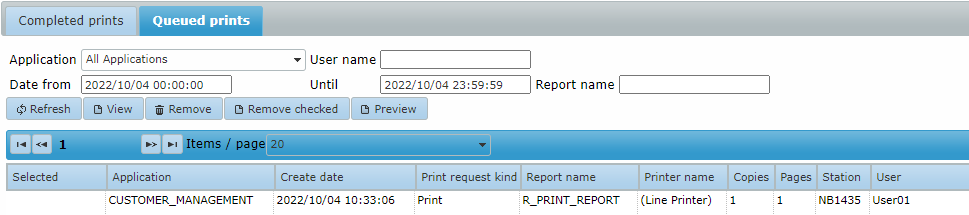
When you right-click a print command in the list, you can choose from the options Details printrequest, Print preview, and Remove printrequest.
Details printrequest
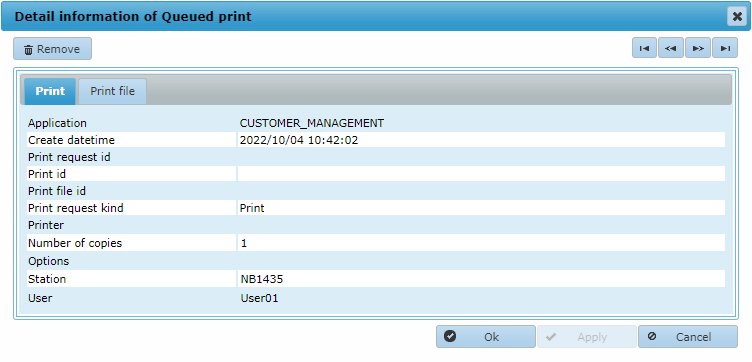
When you select the View option, you are presented with details of the print request, as shown in the example below.
Print Preview
After selecting Print preview, the user is presented with a preview of a PDF version of the print output in a separate browser window by using the Adobe Reader plug-in. This enables the user to view the print output, print it on a local printer, or save it to a local machine.
Remove Printrequest
This option removes the print request from the environment.