Bookmarks
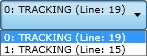
In your LION code, bookmarks can be added to move the cursor instantly to a predefined position. Bookmarks apply to all objects that are currently open in AMT Developer Studio. All bookmark numbers currently in use are displayed in the list box in the toolbar of the implementation screen. If a bookmark applies to another AMT application, the name of that application is also shown in the list.
Bookmarks can be added or removed by using the key combination "Ctrl+Shift+<digit>" or by selecting the "toggle <digit>" option from the pop-up menu. If the bookmark with the corresponding <digit> does not yet exist on the selected code line, it is created at the cursor position. The chosen <digit> is then displayed in the implementation screen immediately before the relevant code line and in the list box in the implementation screen toolbar. If a bookmark with the chosen digit already exists in any of the open objects, that bookmark is removed. When adding bookmarks with the keyboard shortcut, always check the displayed numbers in the toolbar to avoid overwriting existing bookmarks by accident.
A bookmark can be removed by setting the cursor on the corresponding code line and then using "Ctrl+Shift+<digit>" or by selecting "toggle <digit>" from the mouse pop-up menu, where <digit> corresponds to the selected bookmark. A left mouse click on the drop-down list opens a pop-up menu that lets you clear all bookmarks for an object, an application, or the entire repository.
You can jump to a bookmark defined in any open object by using the key combination "Ctrl+<digit>", the pop-up menu option "goto <digit>", or the list box at the top of the implementation screen.