AMT Help Files

Code Personal Options
| Changing options here affects only items that are created after the change. Existing objects are not adjusted retroactively. |
To change code personal options, open the Developer Studio Options dialog and select the Personal tab. Then select either the Code colors tab or the Code options tab.
Lion code colors
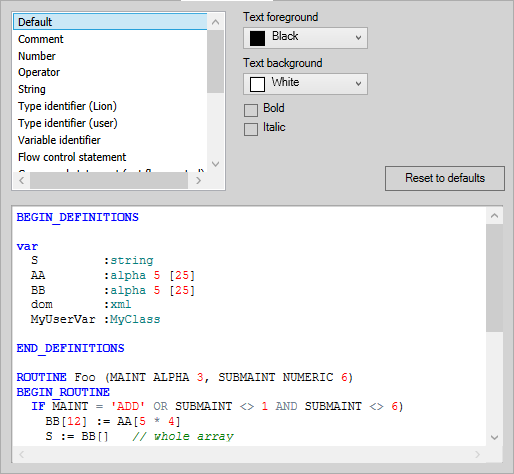
In this tab you can set the colors and font properties used for different types of code when using AMT for Lion.
A table with descriptions of the different display items can be seen on the page "Code colors".
Code options
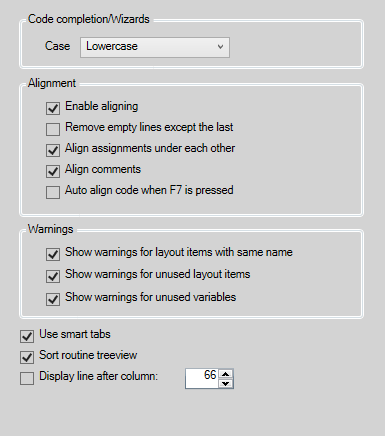
In this tab you can set various code options:
- Code completion/Wizards
- Case: whether to use Lowercase, Uppercase or 'As defined/typed' for the code used by the autocompletion of commands, the Wizards and the creation of new objects.
The 'As defined/typed' option will use the same case style as the user has typed on self defined items.
- Case: whether to use Lowercase, Uppercase or 'As defined/typed' for the code used by the autocompletion of commands, the Wizards and the creation of new objects.
- Alignment: the alignment options to execute when pressing the Align Left button in the code editor, pressing F4 or when pressing F7 when the Auto align is set
- Enable aligning: when checked this will enable aligning. Uncheck to disable alignment, for example to avoid accidental aligning.
- Remove empty lines except the last: when checked and there are multiple consecutive empty lines in the code, these will be reduced to a single empty line
- Align assignments under each other: when checked multiple consecutive assignments will be aligned to the assignment operator :=
- Align comments: when checked comments will be aligned to the rest of the code
- Auto align code when F7 is pressed: when checked the code will be automatically aligned when the syntax of the code has been validated by pressing F7
- Warnings
- Show warnings for layout items with the same name: when checked warnings will be shown when there are multiple layout items with the same name
- Show warnings for unused layout items: when checked warnings will be shown for layout items not used in the code
- Show warnings for unused variables: when checked warnings will be shown for variables not used in the code
- Use smart tabs: when checked the code editor will tab to the first character after one or more spaces found in the line above, aligning the code with that line
- Sort routine treeview: when checked the routine treeview will be sorted alphabetically instead of the order in which they occur in the code
- Display line after column: when checked an additional vertical line will be displayed in the editor behind the column number entered.