
Bulk Mode
In objects where field properties are set in the object inspector, you can also set them in Bulk Mode by right-clicking in the right-hand pane and choosing "Bulk Mode".
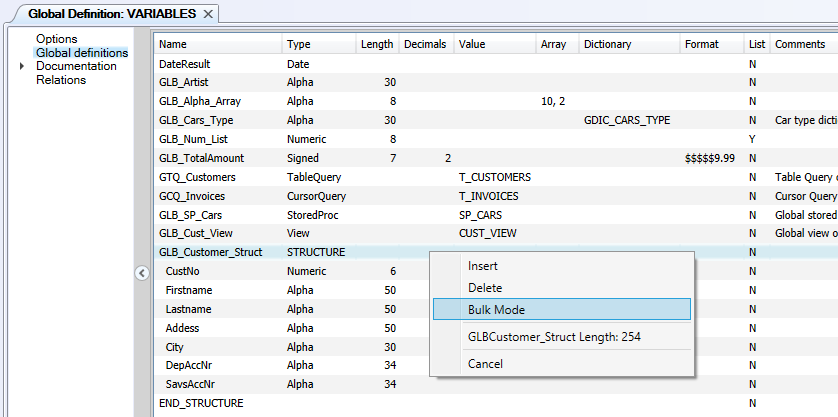
The Bulk Mode screen lets you view and edit fields in a free-format text window.
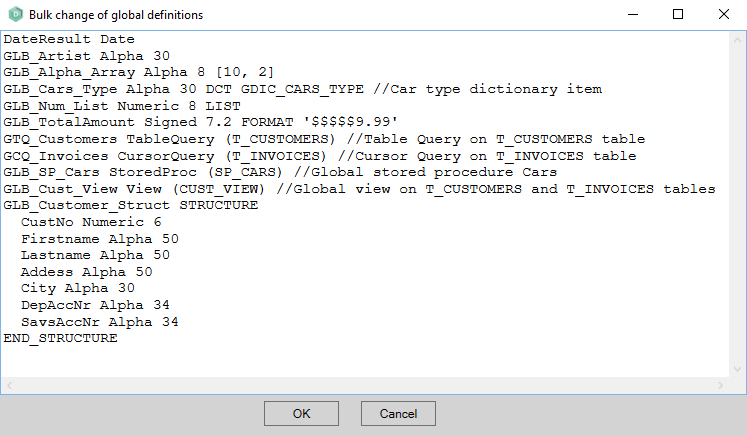
If you want to use copy, paste, or cut functions, you can use the standard Windows shortcuts (Ctrl+C, Ctrl+V, Ctrl+X). Right-clicking in the Bulk Mode editor opens a menu with the options "Select All", "Find", "Find Next", and "Replace".
The syntax of the fields varies depending on the type of AMT object. In general, the order of columns is used for the Bulk Mode syntax. It is recommended that you add one or more entries through the object inspector to see the Bulk Mode syntax for that specific AMT object.
For example, the syntax for the Global definitions Bulk Mode is:
<Name> <Type> [<Length>[.<Decimals>]] [<Initial value>] [[<Array>]] [<Dictionary item>] [FORMAT <Format>] [LIST] [//<Comment]