
Global
The Global tab of the Developer Studio Options contains three sub-tabs as shown below. After making changes to the options, click the **OK** button to save these changes.
Layout
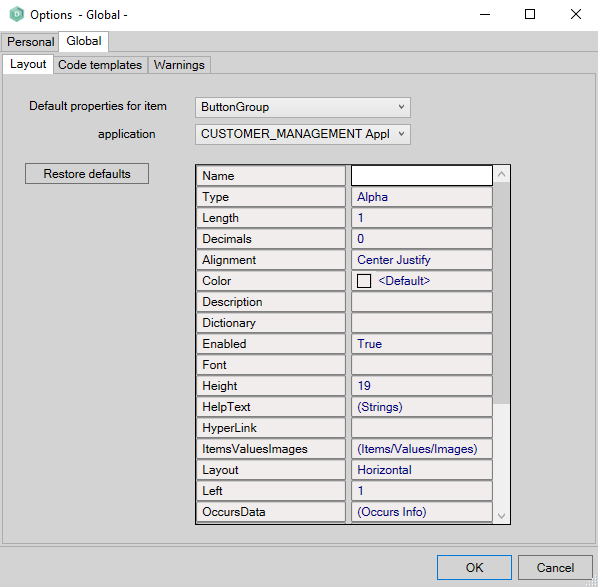
Set the default properties for available layout items. You can set different defaults for each application.
- **Default properties for item:** Select a layout item from the dropdown list
- **Application:** Select an application from the dropdown list
- **Restore defaults:** Restores the AMT Developer Studio defaults for the selected item in the selected application
Once you select an application and layout item combination, you can change the default properties in the list view.
The fonts to choose from are the available fonts of the client machine the AMT Developer Studio is running on. When a chosen font is not available on the client machine AMT Screens is running on (for Reports the server the batch controller is running on and for the webclient the client machine the webbrowser is running on) the Windows default font of that client/server will be used. If that replacement font is wider then your desired font, field sizes will be expanded to fit. To add fonts, right-click on the font file and select the 'Install for all users' option under 'Show more options'. This will ensure that all AMT components will have access to the font. |
Code templates
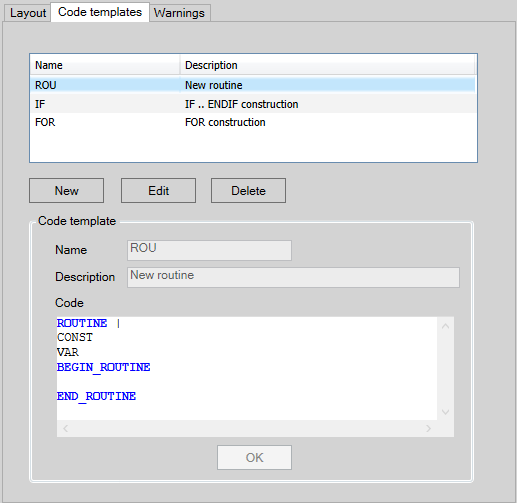
Add, change, and delete code templates available in the editor. To use a code template, type the template name (for example, "rou" to add the complete routine skeleton) and press CTRL+ENTER.
- **New:** Creates new code templates that you can edit in the edit field. Click **OK** to save the code template.
- **Edit:** Modifies existing code templates. Select a template from the list, then click **Edit** to make changes. Click **OK** to save changes.
- **Delete:** Removes existing code templates. Select a template from the list, then click **Delete**. You will be prompted to confirm the deletion.
Warnings

Configure warning settings for the syntax checker.
- **Show update of tablequeries without LOCKED command:** Generates a warning when you update a tablequery without the LOCKED option.