AMT Enterprise Repository
In the repository tree view of the AMT Development, all AMT application sources are displayed.
To add new AMT applications:
- Right-click the system folder AMT Enterprise Repository (displayed at the top of the left pane).
- Select Insert object > Insert application from the context menu. A dialog box appears.
- Enter an application name and click OK to confirm. A new folder appears below the AMT Enterprise Repository folder.
You can also import application sources from .Lionsource files. These sources can be loaded under a new application name (creating a new application folder automatically) or added to an existing application's sources.
When you open an application folder, the object folders for that application appear. Below, the application folder for "CUSTOMER_MANAGEMENT" is opened, showing the underlying folders in both the left and right panes.
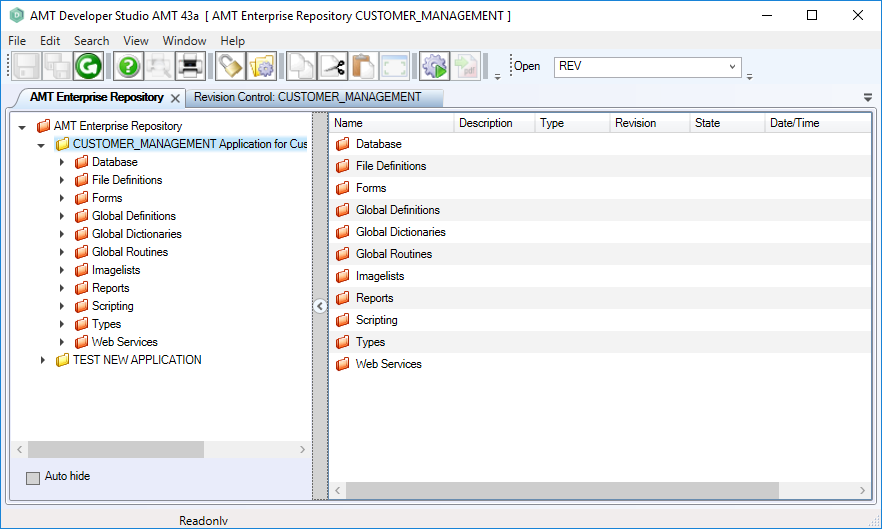
When you open an object folder, the relevant objects for the application appear in the right pane of the AMT Development Studio.
You can open an object through the Repository view by double-clicking on it or by specifying its name in the Open box. Open the global settings screen for an application by right-clicking on the application root and selecting Options from the context menu.
In the object or application options screen, the left pane shows a tree with available options. Expand the option tree by right-clicking in the left pane and selecting expand all nodes. Choose Open in new window from the context menu to open an extra read-only version of the current screen. You can also use File > Open in new window in the main menu bar, or the keyboard shortcut Ctrl+O.
Before editing, you must first lock the object or application settings for other users.
All AMT object sources are stored in the repository database and displayed in the repository tree.
The AMT repository tree appears automatically when you start the AMT Developer Studio. You can open the repository manually by:
- Entering the REP command in the open field
- Choosing View > Repository Tree in the menu bar
- Using the keyboard shortcut Ctrl+R
The tree consists of various folders that store specific subfolders and/or objects. The highest folder (AMT Enterprise Repository) contains all application folders. An application folder contains all the object sources for the relevant application. You can also create shortcut folders in the repository tree. These folders contain links to real objects.
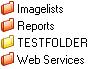
Required system folders appear in red. Manually created folders appear in yellow.
Copying Objects
To copy objects:
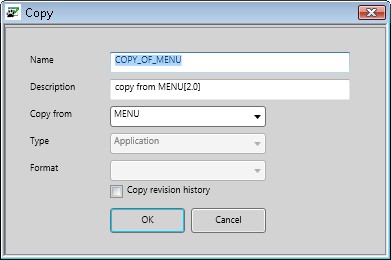
- Right-click the object and select Copy from the context menu.
- Enter a name and description for the new object.
- If needed, check Copy revision history to copy the complete revision history.
AMT Repository Tree Structure
All AMT object sources are stored in the repository database and displayed in the repository tree. You can open the repository manually by giving the REP-command in the "open-field", by choosing View > Repository Tree in the menu bar or with the shortcut "CTRL-R". The tree consists of various folders that store specific subfolders and/or objects.
Required system folders appear in red. Manually created folders appear in yellow. (In the image below, TESTFOLDER has been manually created.)