AMT Help Files

Parameters
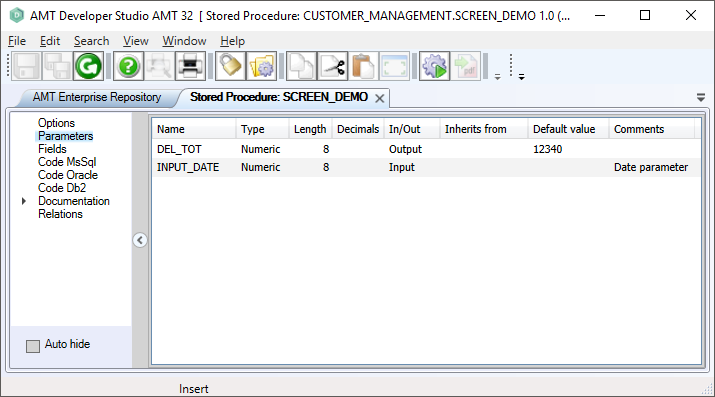
To edit stored procedure parameters:
- In the left pane, select the Parameters node.
- Make sure the stored procedure is locked by selecting the lock button in the toolbar.
- To insert a parameter, right-click in the right pane and select Insert.
- To delete a parameter, right-click the parameter name and select Delete.
- Set parameter properties through the object inspector. You can also use the bulk mode screen by right-clicking in the right pane and selecting Bulk Mode. The bulk mode screen lets you view and edit parameters in a free-format text window. For more information, see Bulk Mode.
- You can assign default values to parameters. These values are used when you call the stored procedure without specifying parameters.
Set the following properties on the Parameter screen:
|
Property |
Description |
Value |
|---|---|---|
|
Name |
The name of the parameter. | <Text> |
|
Type |
The data type for the parameter. | <Alpha | Numeric | Financial | Signed | String | Integer | Boolean> |
|
Length |
The maximum number of characters for the parameter, including any decimal positions. This setting doesn't apply to String, Integer, or Boolean parameters. String parameters always have a maximum size of 2000 characters. |
<Integer> |
|
Decimals |
The number of decimal places for the parameter, which is included in the Length value. This setting doesn't apply to Alpha, String, Integer, or Boolean parameters. | <Integer> |
| Default value | A default value to use when you call the stored procedure without specifying parameters. | A value that matches the parameter type. |
|
Comment |
A description of the parameter. | <Text> |
|
SpInOut |
Specifies the type of parameter data: Input = Data passed into the procedure Output = Data returned from the procedure Input/Output = Data passed in and returned Return = Data returned from the procedure using the SQL RETURN command |
<Input | Output | Input/Output | Return> |