
Available Jobs
This tab shows the jobs available in the AMT environment. Displayed are the Job name, the executable file of the job, the description of the job, the application the job belongs and the default Queue for this job.
You can filter by Application, Queue, and Job type. In the Jobname field, you can enter a case-insensitive search string to show only jobs whose names contain that string.
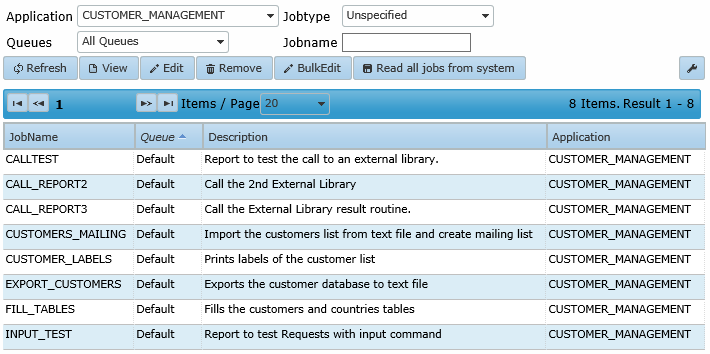
Click 'Read all jobs from system' to read available batch jobs and reports and add them to the list. You can also right-click an existing job and click Read all jobs from system.
When Read all jobs from system is executed, newly found jobs are assigned to a job queue in the following order:
- If a queue is assigned to the application, that queue is assigned to the jobs, regardless of an existing default queue.
- If no queue is assigned to the application, the default queue is assigned to the jobs.
- If no queue is assigned to the application and no default queue is defined, no queue is assigned to the jobs.
See also: Job Queue Priority.
| Warning |
|---|
| Unlike previous behavior, the 'Read all jobs from system' button does not remove jobs if the folder, as specified in base paths, cannot be found. |
When an item in the list is selected, available actions are View job details, Edit job, Remove job, and Read all jobs from system. When Read all jobs from system is selected, all batches and reports in the selected applications are read and added to the list.
If Edit job is selected, the following edit window opens:
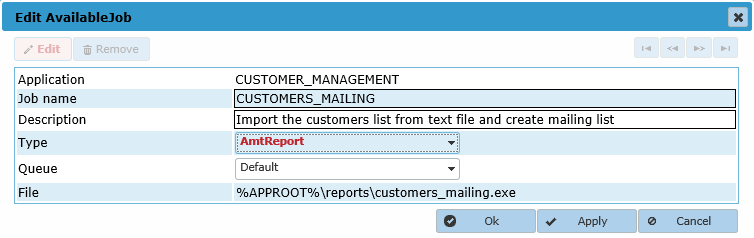
The following items can be changed:
- Job name: The name of the job.
- Description: The description of this job (optional).
- Type: The type of job.
- Queue: The queue for this job. If set to Default, the job queue designated as the default Job Queue is used.
BulkEdit
With BulkEdit, multiple jobs can be assigned or reassigned to a job queue at once.
When you click BulkEdit, a drop-down list with all available job queues appears, together with checkboxes to select jobs. After selecting the job queue and jobs, click Apply at the bottom-right of the screen to change the job queue for the selected jobs.
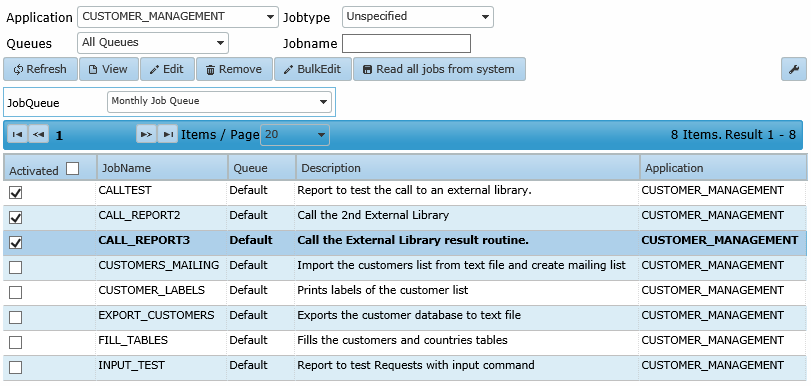
The checkbox next to the column name 'Activated' selects or clears all jobs on the current page at once.