
Batch Services
The Batch Services tab displays a list of batch services defined in the environment. A batch service (or batch controller) is a service that executes and runs jobs.

Managing Batch Controllers
If a batch controller is selected from the list, the options to View, Edit, Copy, Remove, and (De)Install become available.
View
Displays the settings for the selected batch controller.
Remove
Removes the selected batch controller from the environment.
Add, Edit, Copy
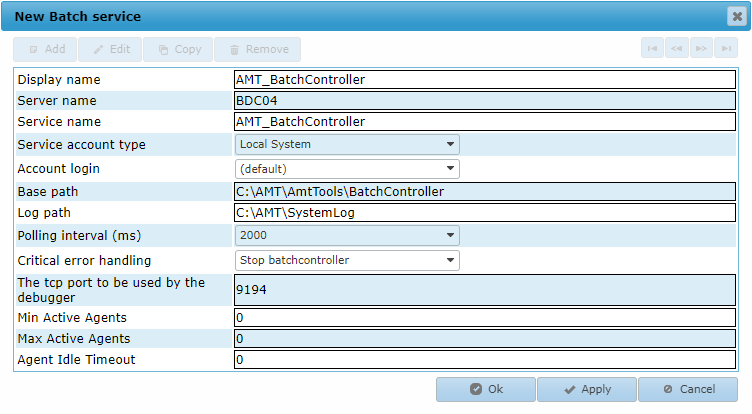
Add, edit, or copy a batch controller. This opens the window shown in the image below. When you add a new batch controller, the edit boxes start out empty.
Settings
Display name
Sets the display name for the batch controller in the AMT environment.
Server name
The name of the server on which the Windows service of the controller is running.
Service name
The exact Windows service name of the controller.
Service account type
The type of Windows service to use for this service. Possible values are:
- Local System
- Local Service
- Network Service
- User
If set to User, the Account login field must be set to a valid Login Account.
Account login
The Login Account to use if the service account type is set to User. The displayed accounts are the login accounts added in Security Configuration → Login Accounts. To use this login account to start and stop the service, the underlying Windows user account must be granted permission to control Windows services (see Controlling Services from a User Account).
Base path
The path to the ..\AmtTools\BatchController directory in the main installation directory on the server.
Log path
The path to the directory where the batch controller stores its log files.
Polling interval
The interval, in milliseconds, between polls of the batch queue to determine whether there are still requests to handle. Possible values are 500, 1000, 2000, 5000, 10000, and 30000 ms.
Critical error handling
This setting controls what the batch controller does when the connection to the database is lost.
- Stop batch controller: The batch controller stops, and the system operator must check and restart it manually. This is the default.
- Halt batch controller: The batch controller goes to the Halted state. The system operator can then resume it manually.
- Continue/ignore system error: The batch controller keeps trying to reconnect to the database.
The TCP port to be used by the debugger
The TCP/IP port number to use for this service by the debugger. It can be any free TCP/IP port between 1024 and 49151.
Min Active Agents
This sets the minimum number of active batch controller agents per application. The default value is 0 (zero), which means there is no minimum number of agents required to be active for the batch controller.
Max Active Agents
This sets the maximum number of active batch controller agents per application. The default value is 0 (zero), which means there is no maximum, so an unlimited number of agents may be started by the batch controller.
| Regarding Agents |
|---|
| Each running job uses an agent. If the maximum number of agents is set to a value higher than 0 (zero) and that value is reached, no more jobs can be started. |
Agent Idle Timeout
The idle timeout length, in minutes, for batch controller agents. After remaining idle for the length of time set here, batch controller agents are stopped until the required number of minimum active agents per application is reached. The default value of 0 (zero) means that the agent idle timeout is set to 60 minutes.
Installing the Batch Controller as a Windows System Service
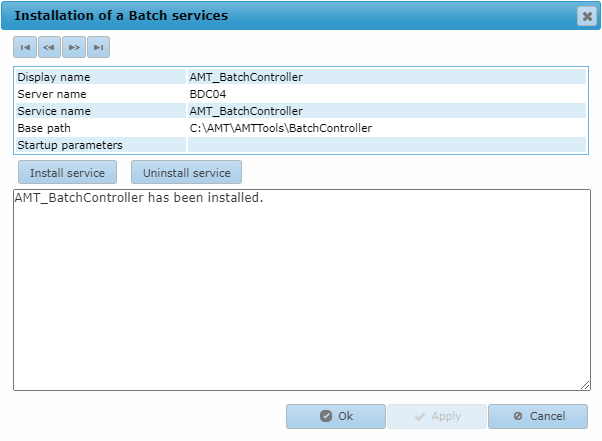
Clicking the (De)Install button opens the window shown in the image below. The batch controller can be installed as a Windows system service from this window by clicking the Install service button. If the installation is successful, a message stating "service has been installed" appears in the message pane of the window.
warning Installing a service works only if a default login account with the correct security rights has been added to the Login accounts in the Control Center.
Starting/Stopping the Batch Controller
The batch controller can be started or stopped on the Server Control page of the Control Center. Note that batch controllers start only if at least one job queue has been defined in Job Queues.